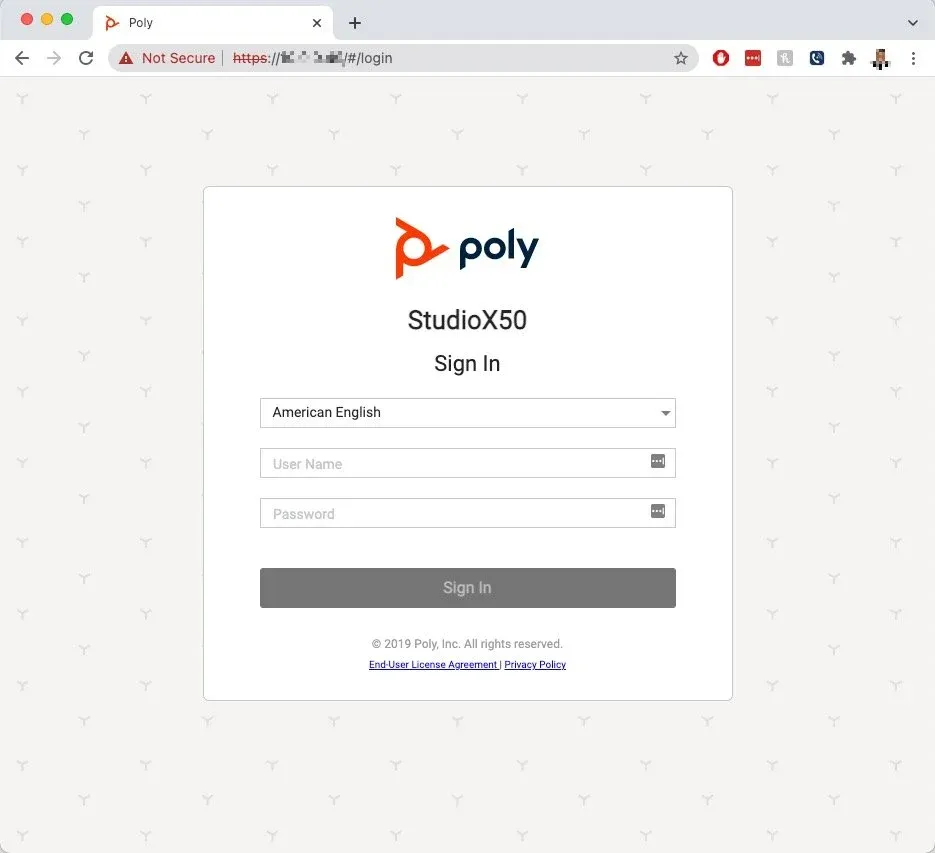
1.- Make sure that your Poly Studio device is connected to the network and is on
2.- You will need the Poly Studio IP address to log into the device web browser.
If you have the Poly TC8 Intuitive Touch Interface you can see the IP address swiping up in your TC8 and selecting your settings. You will see the IP Address of the Room system identified as the Connected Room System IP Address.
3.- Visit the administrative page of the Poly X Series device using your preferred internet browser, entering the IP Address of your device. Please make sure that your computer is connected to the same network as the Poly X device.
Once you see the Sign In page of your Poly X Series device. Enter your credentials to access de administrative portal and proceed to sign in. Default credentials are the following:
Login: Admin
Password: (Last 6 character of Serial Number)
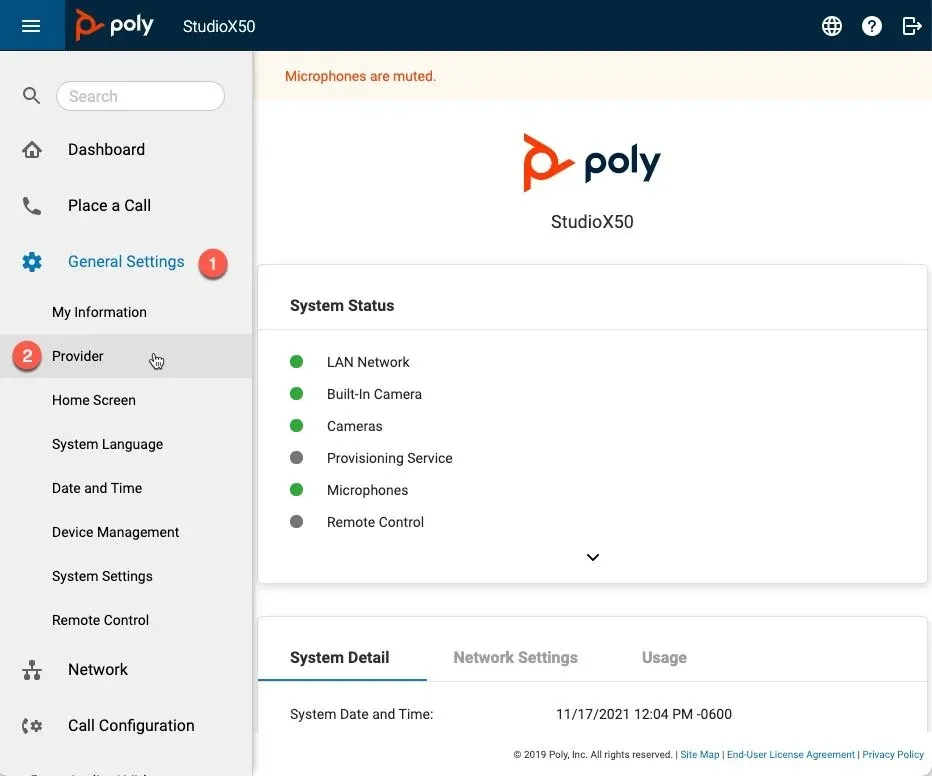
4.- Once you are logged in, you will see the main administrative dashboard of your Poly Studio device. To set up your device with your preferred video conferencing provider, go to (1) “General Settings” and then (2) Select “Provider”.
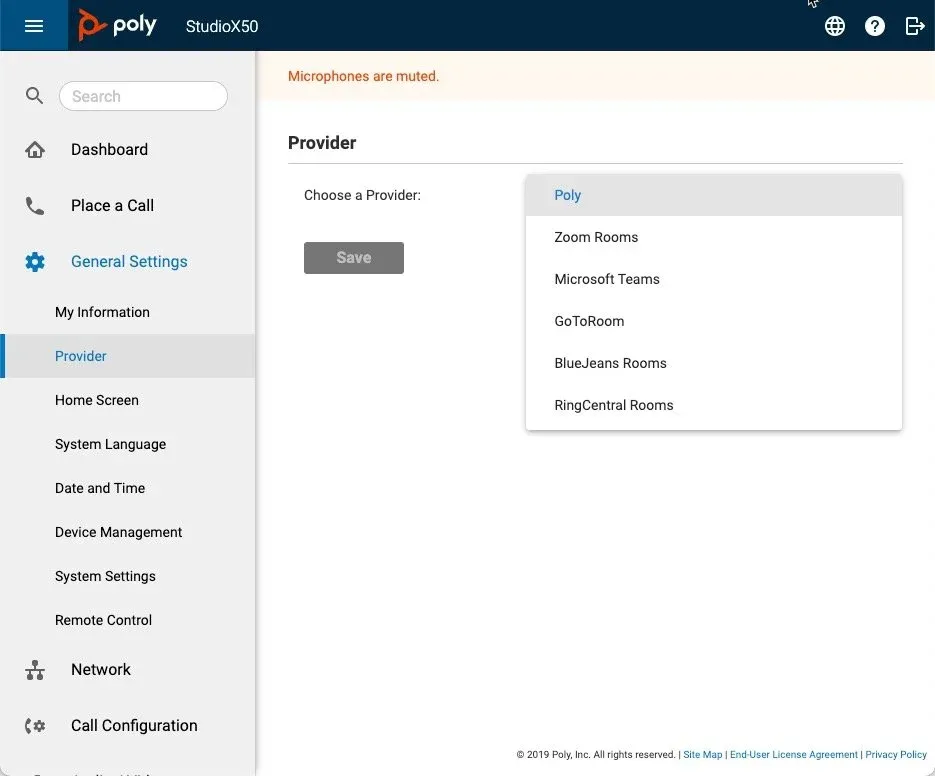
5.- Once you are in the providers menu, select your preferred conferencing provider. if your Poly Studio device is fully updated the list of providers should include:
-
Poly
-
Zoom Rooms
-
Microsoft Teams
-
GoToRoom
-
BlueJeans Rooms
-
RingCentral Rooms
-
Device Mode
-
StarLeaf
-
DialPad Conference Room
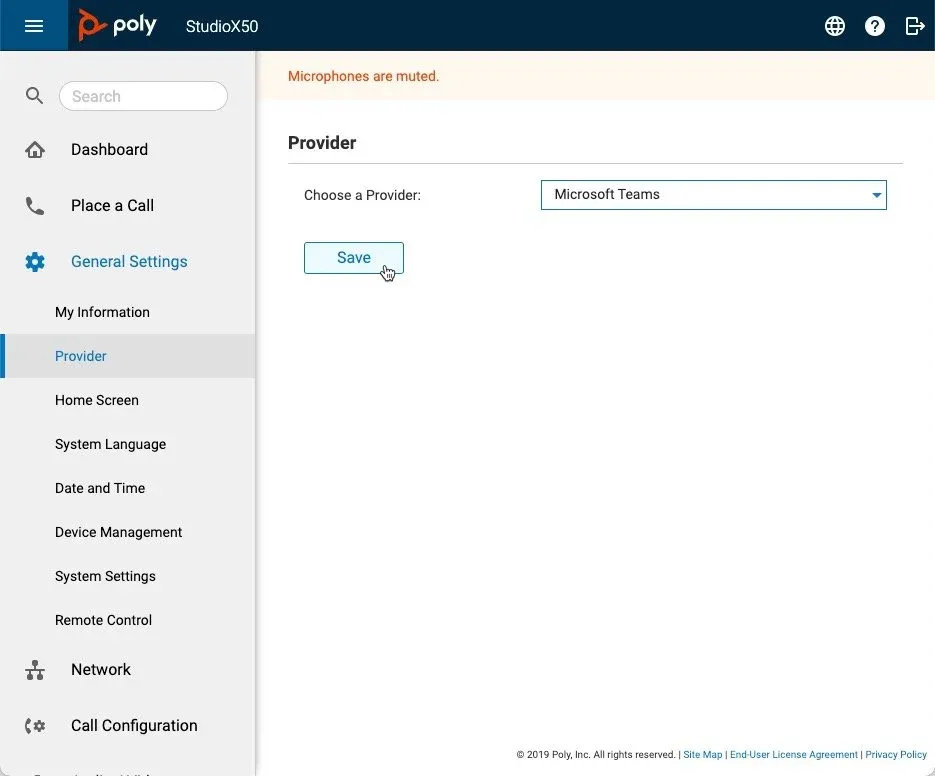
6. Once you have selected your primary/preferred video conferencing provider, click Save. The Poly X Series device will reboot to apply your configuration. This process can take up to 10 min.